
How to Find Out What Font or Platform Any Website Uses (Quick & Easy)
Quick answer: You can find out what font or platform any website uses in under 60 seconds - using your browser's built-in inspector, or a free Chrome (or Brave - the platform I prefer!) extension like WhatFont. No coding knowledge required.
Here's the thing most people don't realise: identifying a website's fonts and tech stack is something you can do in seconds - and it's one of those small skills that saves you enormous amounts of time when briefing designers, choosing platforms, or just satisfying your curiosity.
You come across a website and think, "Wow - that's exactly the look I want." But then comes the question: what platform is it built on? What font are they using? And how on earth do you find out?
This happens to new clients all the time. Someone asks me to fix their website and when I ask, "What platform is your site built on?" the answer is almost always, "I have no idea!" - and that makes my blood boil. They've handed money to a developer at some point and been left completely in the dark.
I'm all about changing that. We help business owners fix, manage, and understand their websites - whether they're on Shopify, Wix, Squarespace, WordPress, or something else entirely. Because you shouldn't need to call someone every time you want to change a button. (And if you're curious - hellomedia.team is built on Magnify Hub, which runs on the HighLevel platform. We love it.
Below are the fastest, most reliable ways to find out - whether you're a business owner, a marketer, or just someone who's spotted a font they love and can't let it go.

How to find out what FONT a website is using
Option 1: Use your browser inspector (free, always available)
Right-click anywhere on the page and choose Inspect (Chrome or Firefox).
Or use the keyboard shortcut: Ctrl+Shift+I (Windows) or Cmd+Shift+I (Mac).
Click on the element whose font you want to identify.
Go to the Computed or Styles tab and scroll to the font-family attribute.
There's your font.


Option 2: Use the WhatFont Chrome extension (the easy way)
If you'd rather skip the inspector entirely, WhatFont is the extension for you. It's free, lightweight, and takes about 10 seconds to use.
Install WhatFont from the Chrome Web Store.
Click the extension icon whenever you want to check a font.
Hover over any text on the page - it instantly shows you the font name, size, weight, and colour.

How to find out what PLATFORM a website is built on
Option 1: Check the browser inspector source code
Right-click and choose Inspect, then navigate to Sources.
Look at the file extensions and URLs in the source code - they're a dead giveaway:


Option 2: Check the website footer
Many websites credit their design agency in the footer. Click through to that agency's website and you'll usually see exactly which platforms they build on. A little bit of super-sleuthing goes a long way.
Option 3: Use BuiltWith (free website tech lookup)
BuiltWith.com is a free tool where you paste in any website URL and it breaks down the entire tech stack - web server, email platform, SSL certificate, CMS, analytics tools, and more. It's surprisingly detailed and great for competitive research.
Option 4: Use the Wappalyzer browser extension
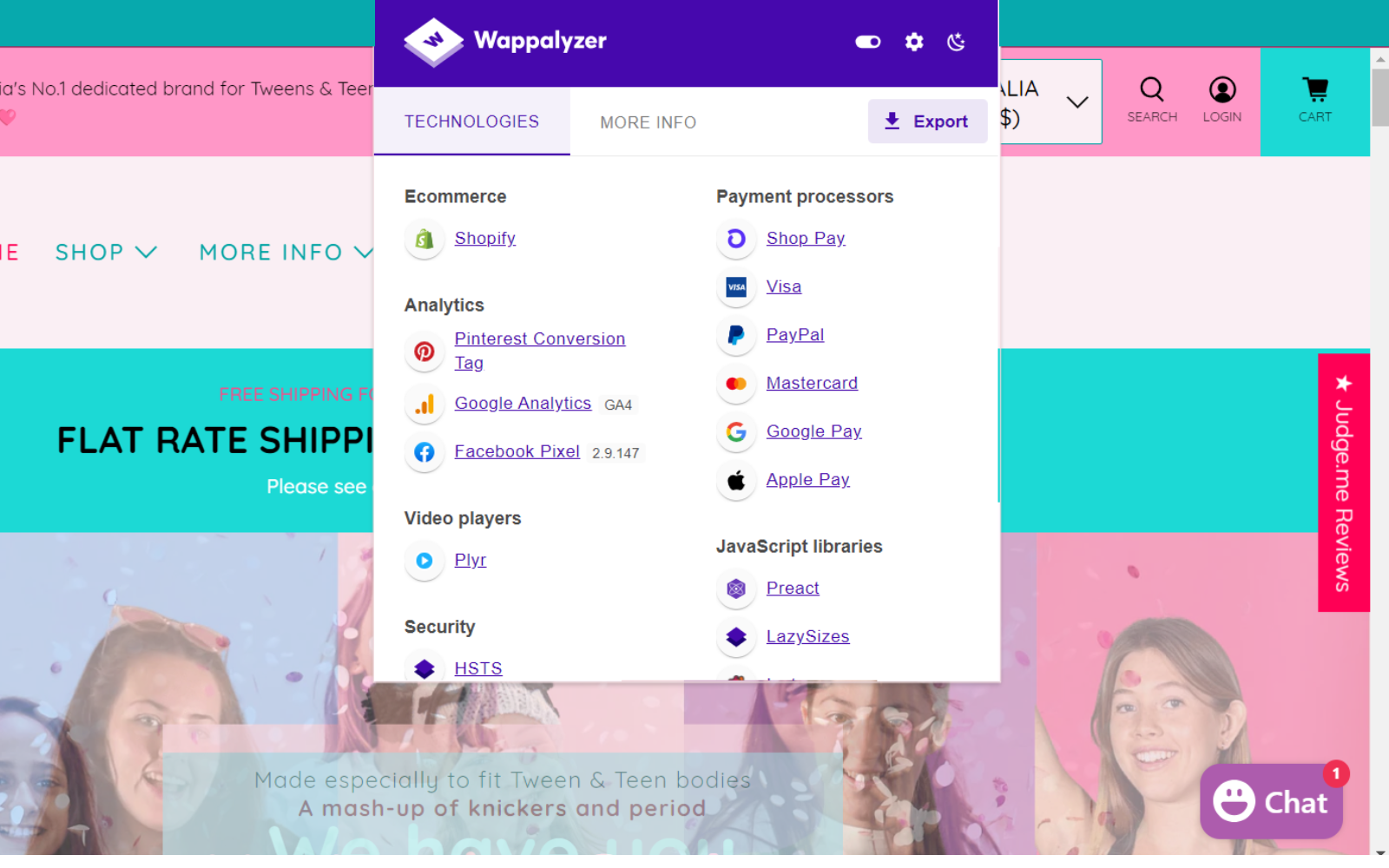
Wappalyzer is a browser add-on (Chrome and Firefox) that automatically detects the technologies behind any website you visit - no clicking around required. It shows you the CMS, frameworks, analytics tools, payment providers, and more in one clean panel. Honestly, it's my favourite for ease and convenience.
Why does this matter?
Knowing what platform a website is built on - or what font it uses - isn't just satisfying curiosity. It helps you:
Brief a designer or developer with confidence
Choose the right platform for your own website
Identify fonts you love and use them in your own brand
Research competitors' tech stacks
Save hours of guesswork
These are the kinds of small, practical skills that make a real difference when you're running a business online. Once you know them, you'll use them constantly.
Got questions? Come and ask in the Hello Media Lounge
Join our free Facebook community - AI + Socials + Strategy Updates | Hello Media Lounge - for regular digital marketing and AI updates, tips, and a community of people who actually want to grow smarter online. It's free, friendly, and genuinely useful.
*First published 20 February 2024, updated 31 May 2026